
Debugger#
Added in version 3.0.
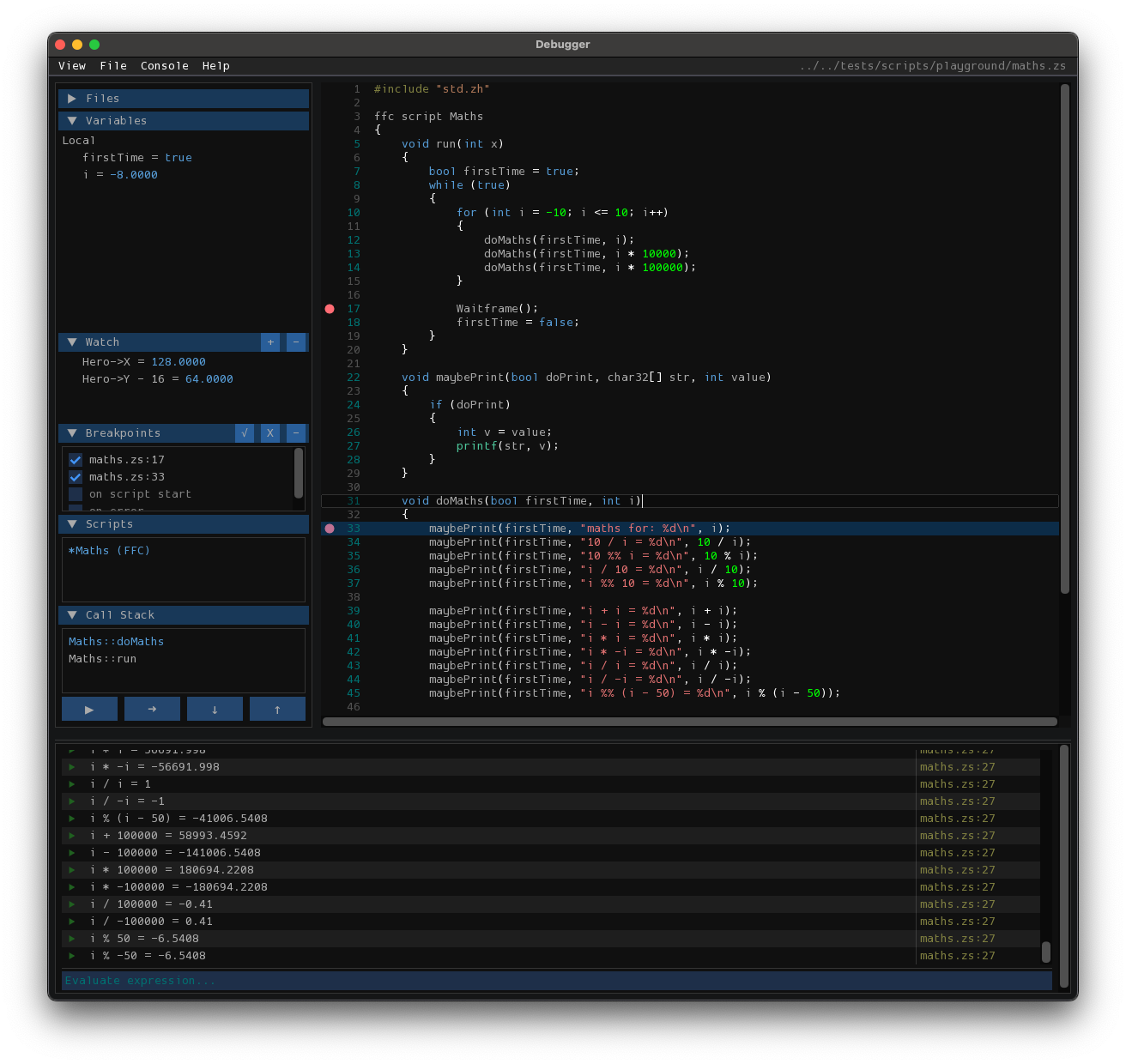
The ZScript debugger provides a fully integrated environment for inspecting and debugging scripts in real-time. It features a rich console, breakpoints, and advanced navigation tools.
This is currently not available in the web build.
Console & Evaluation#
The debug console allows for the evaluation of complex expressions during runtime. Objects and arrays returned by evaluations are fully interactive; you can expand them to inspect their properties, mirroring the behavior of the Variables view.
Rich Object Inspection: Evaluated objects are interactive. Click arrow icons to expand arrays or class instances.
Command History: Press
Up/Downwhile the input is focused to cycle through your command history.Auto-Scroll: The console automatically scrolls to keep the latest output and expanded objects in view.
Quick Open#
To quickly jump between source files, use the Quick Open dialog.
Shortcut: Press
Ctrl+P(orCmd+Pon macOS) to open the file selector.Fuzzy Matching: Type part of a filename (e.g.,
npc/zh) to find it instantly.Keyboard Navigation: Use
Up/Downto highlight a file andEnterto open it.
Debugger Controls#
The debugger supports standard keyboard shortcuts for controlling execution flow:
Shortcut |
Action |
|---|---|
|
Continue / Start (Resume execution) |
|
Pause (Break execution) |
|
Step Over (Execute next line) |
|
Step Into (Enter function call) |
|
Step Out (Return from current function) |
Breakpoints & Watch Window#
- Breakpoints
Instruct the program to pause at specific places.
In the script text view, left-click on the gutter (the area to the left of the line numbers) to toggle a breakpoint.
In the script text view, right-click to open the context menu: you can Add, Remove, or Toggle Disable/Enable breakpoints for specific lines.
Enable the
on script startspecial breakpoint to pause whenever a new script begins.Enable the
on errorspecial breakpoint to pause whenever an error occurs.
- Watch Window
Monitor specific variables or expressions over time.
Click the + button to add a new watch expression.
Use the context menu to Enable All, Disable All, or Clear All watch expressions.
Can also add a watch expression by right-clicking a variable in the Variables window or in the console